#Using the Iceberg color scheme in Tilix
It’s been a while since my last post. I’ve been putting off writing.
I have quite a backlog of things I’d like to write about, if I get around to it.
For this post I gave the Tilix terminal from my previous article a new color scheme.
##In this article
- Give Tilix the same Iceberg color scheme as my editor
##What is Iceberg?
I’ve spent the last few months tuning my development environment, especially my terminal.
I’ve also been working on my editor setup and now write code in Neovim.
While configuring Neovim, I came across a theme I liked immediately.
That is ICEBERG.
It’s a simple palette built around dark blue. I like the look, and the text is easy to read.
After using it in Neovim for a while, I wanted those colors in my regular terminal sessions too.
The project supplies a theme for Terminal.app on macOS.
I couldn’t find one for Tilix, or for any of the other terminals I could use on Ubuntu.
While looking for alternatives I found this site:
It converts color schemes between several terminal formats.
Tilix unfortunately isn’t one of its export formats.
Further searching led me to find this.
This tool can convert an iTerm2 theme to a Tilix scheme.
That is,
Iceberg for Terminal.app → terminal.sexy → iTerm2 format → color4tilix → Tilix format
It seems like it could be converted.
I’ll use that two-step conversion.
##Converting the color scheme
###Converting to iTerm2 format
Download the Terminal.app theme from the Iceberg project page.
Open the downloaded Iceberg.terminal file in a text editor and paste its contents into the Import box on terminal.sexy.
Set Format to Terminal.app and click Import.
The preview itself changes to the Iceberg palette.
Open the Export tab, set Format to iTerm2, click Export, then click Download.
You now have the theme in iTerm2 format.
###Converting to Tilix format
First, fetch the converter that generates Tilix themes.
Run the following command.
go get -u github.com/tux-eithel/color4tilix/...
If you haven’t set up Go yet, see my Go setup guide.
Once the converter is installed, run:
iterm2tilix -d (先ほど変換したitermcolorsファイルが入っているディレクトリ)
Pass the directory containing the file, rather than the file itself.
This tripped me up for a while, even though it’s documented on GitHub.
Look for terminal.json in the same directory.
##Applying the theme in Tilix
Move the generated terminal.json into ~/.config/tilix/schemes.
Give it a recognizable filename such as iceberg.json.
Open it in a text editor and set the name field to something recognizable too, such as iceberg.
The scheme will now appear in the theme dropdown described in my previous post.
Select it to apply the Iceberg colors.
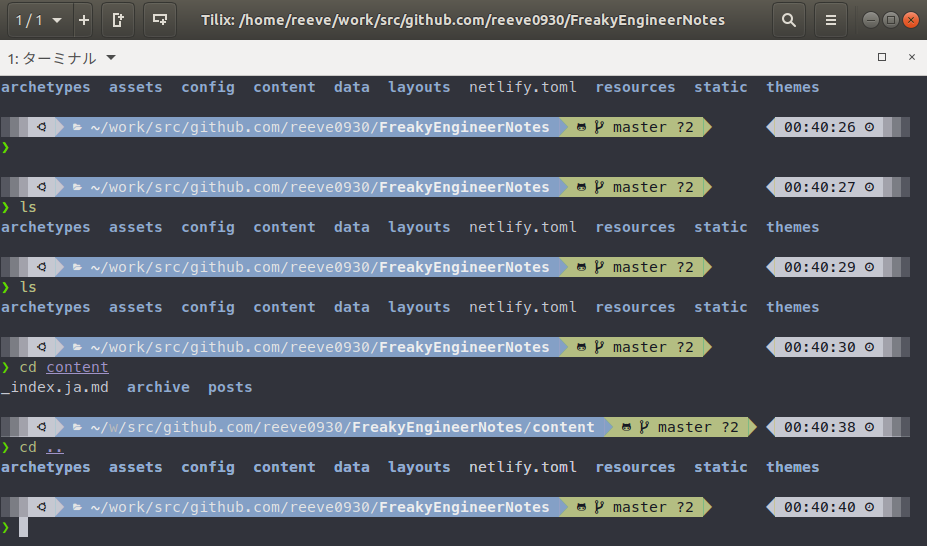
Mm, it feels good.
I configured the shell prompt separately.
I’d like to write about the prompt setup another time.
##Wrapping up
Converting the theme in two steps got Iceberg working in Tilix.
I’ll keep experimenting with my terminal setup.