#Setting up Japanese thumb-shift input on Ubuntu 18.04 LTS
I’ve been using thumb-shift typing for six or seven years.
Here’s how I set it up on Ubuntu 18.04 LTS.
##In this article
- Build a finger shift environment with high conversion performance for Ubuntu 18.04 LTS.
##What is thumb-shift typing?
Thumb shift is a fast typing system designed specifically for Japanese.
Pressing two keys together lets you enter any hiragana in a single stroke, including kana with voiced and semi-voiced marks.
The layout is based on how often each kana appeared in a large sample of Japanese writing.
The most common characters sit close to the home position.
People often mention speed. What matters most to me is how little fatigue builds up during a long typing session.
I’ve had stiff shoulders for years, and mine bothered me noticeably less after I switched from romaji input.
This introduction goes into more detail about thumb-shift typing:
##Installing and configuring oyainput
The layout was designed for a dedicated keyboard. Those keyboards are uncommon now, so people often emulate the layout in software. Some physical keyboards suit it better than others.
On Windows, Yamabuki R is a popular option. On Linux I use oyainput.
It works with Mozc, the open-source counterpart to Google Japanese Input.
For me, combining thumb shift with Mozc makes typing Japanese much more efficient.
- Get the source code for oyainput
Run the following command to obtain the source code of oyainput.
git clone https://github.com/inwskatsube/oyainput
- Build and install the source code
Run the following command to build and install the source code.
cd oyainput
make
sudo make install
- Run oyainput once
Run the following command to start oyainput.
At this point, if two or more keyboards are detected, the options will be displayed.
If you don't know which one to choose, it's easiest to just pick one randomly and check the operation.
If it starts up normally, use ctrl+c to stop it.
oyainput
- Open the
.oyainputconffile generated in the home directory and change the settings.
It's best to set it according to your own environment, but I'm setting it up as follows.
# Keyboard name (ASUS UX331UN here; use the name you selected above)
KEYBOARDNAME=AT Translated Set 2 keyboard

# Left thumb key
LOYAKEY=MUHENKAN

# Right thumb key
ROYAKEY=HENKAN
Now that the settings are configured, restart oyainput to verify the functionality.
Japanese input worked for me, but English input still behaved as if thumb shift were active: pressing S produced si.
This point will be fixed later.
##Changing the input method framework
As mentioned above, this issue seems to occur when using ibus as the input IM.
We don't really understand the detailed cause itself (is the implementation simply not supporting it?).
Since ibus is used by default in Ubuntu 18.04LTS, change it to fcitx.
- Install fcitx-mozc
Install via the following command:
sudo apt install fcitx-mozc
-
Change IM to fcitx and reboot the PC
Open the 'Show Applications' button in the bottom left corner of the screen, and enter 'Language Support' in the search box to open it.
Then, change theIM systemused for input on the keyboard tofcitx.
After making the changes, I rebooted the PC. -
Change the settings for oyainput
Open.oyainputconfagain and change it as follows.
# Input method whose on/off state to follow: fcitx, ibus, auto, or none.
IM=fcitx
Start the oyainput to test it after making changes.
If you can input English text normally, that's okay.
##Starting oyainput at login
Set to automatically launch oyainput when the PC starts (strictly speaking, when logging in).
First, open the Show applications button in the bottom left corner of the screen, search for session, and open the Set up automatically launching applications settings.
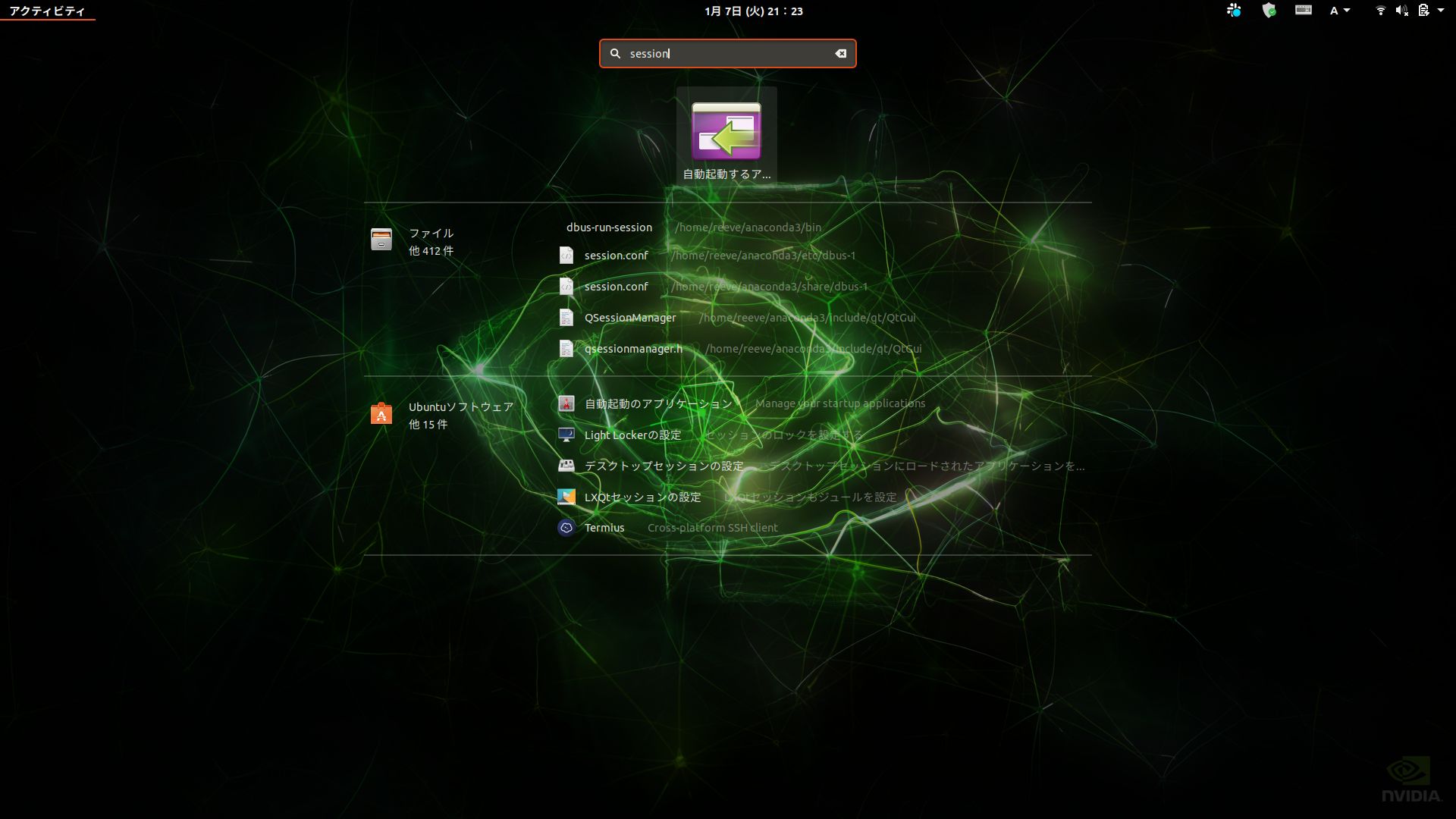
The following screen opens.
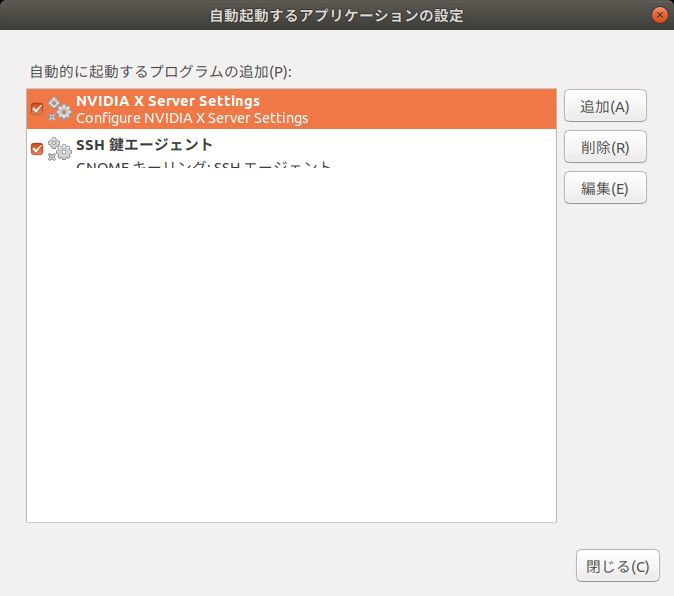
Click 追加 and input as follows.
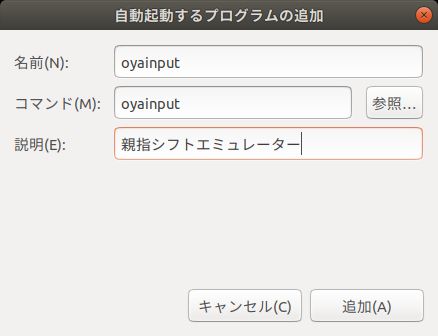
Enter the input and press "Add" to save it.
It should look like this after adding it successfully.
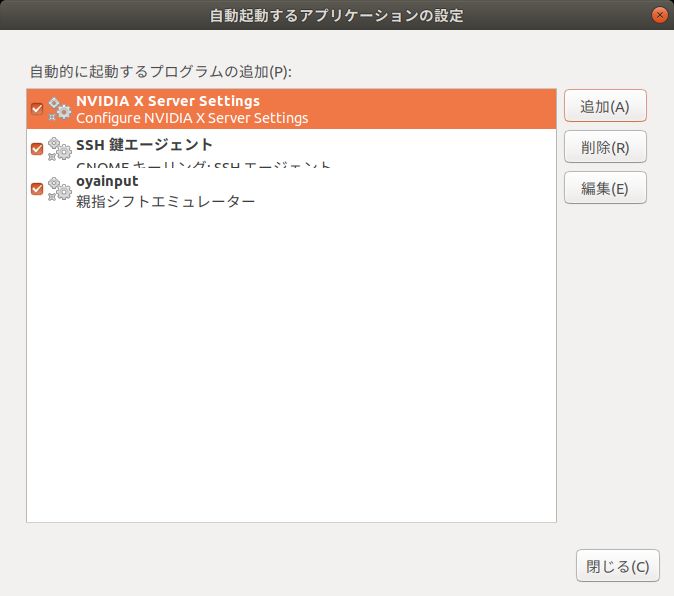
Reboot and try typing with thumb shift after login. If it works, the startup entry is doing its job.
By the way, pressing the pause button can temporarily stop oyainput.
##Wrapping up
That gives me a working thumb-shift setup.
It would be good if it actually works withibus, but I would like to update it as soon as I understand the cause (in fact, if anyone knows a solution, I would like to know it).
I’m still very fond of this way of typing.
I rarely meet other thumb-shift users, perhaps because it takes time to learn.
When I learned, I stopped using romaji input altogether. After about a month I could type reasonably well. I was a student then; that approach would be harder with a day job.
If I get the chance, I’d like to write about how I practiced.